





Table Of Content:
The first thing you should do when using your bank is set up a bank PIN. This PIN must be entered before your bank can be accessed and will help to prevent your items being taken from your account is ever hijacked.
-
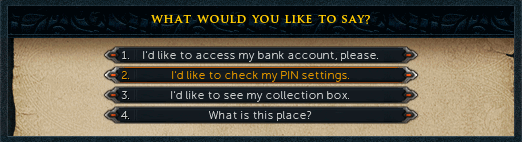
To set up a PIN, talk to any banker and choose the second option.
-
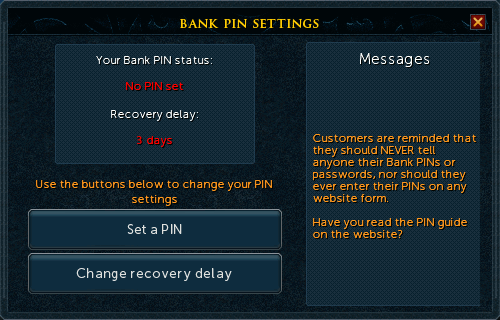
A Bank PIN settings screen will pop up, select "Set A Pin".
-
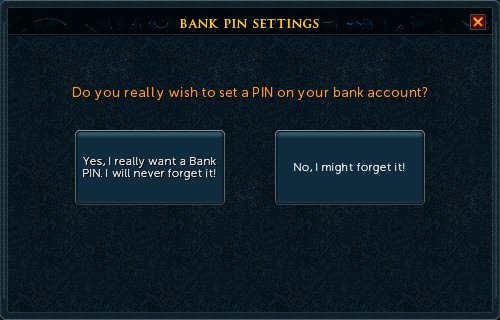
Now, select "Yes, I really want a Bank PIN. I will never forget it!."
-
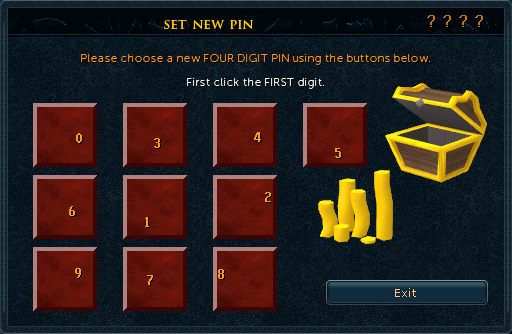
The next screen will prompt you to enter the Bank PIN you would like to use. Select the digits of your Bank PIN. To ensure you that you clicked one of the numbers, a helpful reminder has been added to the top right hand corner of the corner.
One of the 4 "?" marks will change into a "*", each time you enter a digit. Due to security reasons the numbers will change order while you enter the digits.
Note: Do not use your birthday, cellphone PIN or real-life bank PIN as your RuneScape Bank PIN as some of your friends or relatives might know this information and might try to hack into your bank account.
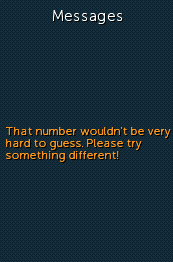
If you enter a too easy PIN number (e.g. 3333), the following message will appear:
-
Once you have entered your Bank PIN, you will be prompted to enter it once more as a confirmation. Due to security reason, you will have to wait seven days before you will be able to use your Bank PIN. Even if your Bank PIN is pending, you will be able to access your bank, but you will be asked if you have set a Bank PIN and if you want to continue.
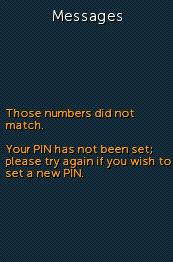
If you enter the wrong Bank PIN, the following message will appear.
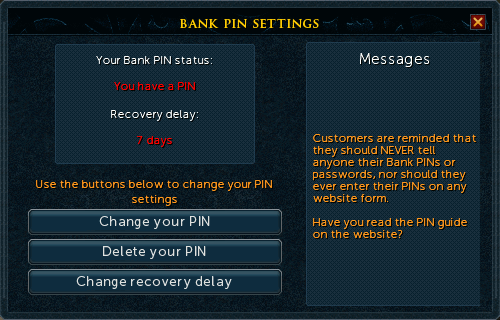
When you have created your Bank PIN you may use the settings menu to check on the status of your Bank PIN. Simply talk to a banker to access your Bank PIN settings. You can use this menu if you wish to delete your (pending) Bank PIN, change your Bank PIN or want to change how long it will take to recover a lost PIN.
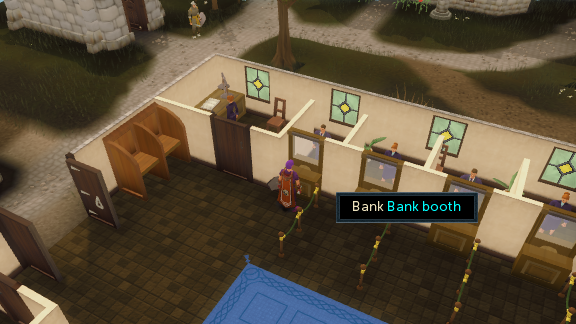
Banks are used to store many items. You may check how many items you have in your bank by looking in the upper right hand corner of the bank interface. Non-members have a total of 83 bank slots, while members have a total of 496 bank slots (or 871 if bank boosters are purchased from Solomon's Store). To access your bank, simply click on a Banker, Bank booth or Bank chest.
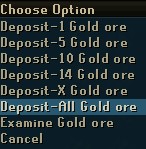
To store an item in your bank, click on the item in your inventory you want to deposit. It wil then appear in your bank. To store more than one of an item right-click the item and choose the number you would like to deposit.
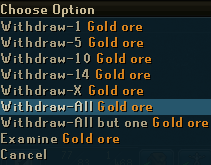
To withdraw an item from your bank, click on the item in your bank and it will appear in your inventory. To withdraw more than one of an item right-click the item and choose the amount you would like to withdraw.
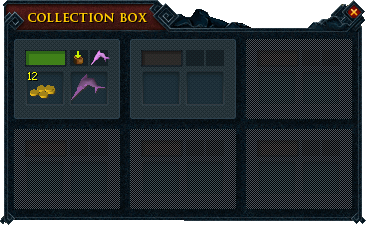
You may also check on your Grand Exchange offers at a bank by selecting "Collect Bank booth".
Bank tabs will help you to organize your bank. You may have up to 8 bank tabs at a time. The "All" tab, marked with the infinity symbol, will show you every item and tab that you have in your bank. To add a new tab, drag an item into the tab marked with the "+" sign. The first item you drag, will then appear in the tab and will mark the tab. To add more items to that tab simply drag more items into it. If you click on any tab it will show the items you have moved to it. To remove a tab, right-click the and select "Collapse tab". If you remove a tab all the items that were in that tab will moved to the "All" tab. A tab will also be removed if you remove all the items from it.

At the bottom of your bank, you will see a bar containing a selection of different buttons.

These buttons are:
Search:

As you store more and more items, it may become difficult to find what you're looking for. By clicking this button, you can type in the name of an item to find it instantly.
Bank PIN:

You can click this button to quickly access your PIN settings.
Preset Options:

Click on this button to open up the Preset Setup Menu. This allows you to set up and save a number of inventory, armor and clothing presets which you can then quickly load up and automatically equip without having to withdraw and equip the items manually.
Preset 1:

Click this button to quickly load your first equipment preset.
Preset 2:

Click this button to quickly load your second equipment preset.
Note Item:

Click this button to withdraw stackable items in noted form. Notes cannot be used for anything, but they allow you to withdraw a large number of items at once.
Deposit Inventory:

Click this button to deposit all currently items in your inventory into your bank at once.
Deposit Worn Items:

Click this button to deposit all items you are currently wearing into your bank at once.
Deposit Beast of Burden:

Click this button to deposit all items currently stored in a summoned Beast of Burden familiar into your bank at once.
Deposit Money Pouch:

Click this button to deposit the contents of your Money Pouch into your bank.
Managing our bank space is a problem for all of us, some of us have even been reduced to having to carry around the things that are taking up too much space!
With all these quests being added in, as well as the massive release of farming, it is getting harder and harder to fit all those things in. This guide is aimed to help you get rid of all the unwanted things in your bank that are taking up all the space, and hopefully make it a little easier to cope with quest items and skills. All of of these hints involve the Construction Skill.
Note: With the addition of the tool-belt, you can save up to 39 bank spaces!
Contents:
Clearing Out Your Bank
Items to Get Rid of
More Tips
Quest Items to Keep
Bank Organisation Tips
-
When you are going through your bank, you will be astounded at how much junk you find. As you go through, ask yourself whether you really need the items you want to get rid of. If not, away it goes.
Same as for armor. It might be a good idea to have a set of arrows that you train with (ie. weaker ones), as well as ones that you use to PK and/or fight harder monsters. Finish making the arrows. Don't leave headless arrows and heads lying around. Although costly at first, the Crystal Bow saves room since you don't need arrows to operate it.
-
Potions: These are a big bank space user. Keep all your potions of the same kind of one dose, don't have some 1 dose, some 2 dose, etc. Remember that you can use one potion with another potion of the same kind to combine the doses. Also, don't leave unfinished potions lying around.
-
Herbs: These are another big bank space user. Identify all your herbs and use them, or sell them, as well as the ones you can't identify.
-
Flowers: If you like to carry around flowers occasionally, keep one set. Don't keep flowers of all the different kinds, as it will take up a lot of bank space.
-
Food: Keep some high healing food, such as sharks, as well as some lower healing food, such as lobsters or swordfish. It might also be a good idea to have some cakes handy if you use agility often. Again, do not keep different portions of cakes, as this will use up a lot of bank space. Unless you are working on raising Cooking, fish is the best bet. No need for extra ingredients during preparation.
-
Cannon: If you don't use your cannon often, you can save some bank space without any cash out of pocket. Simply set up your cannon, and walk away. When you need it again, you can get it back from the dwarf. Be careful to set it up, rather than drop it.
-
Kittens: If you don't particularly like or care for your cat or kitten, shoo it away, or raise it to a cat and sell in West Ardougne for 100 death runes. You can collect another one from Gertrude for 100gp. The same goes for Pet Fish and Pet Rocks, if you don't particularly like them, drop them.
-
Kitten food: If you are raising your kitten, don't keep all different kinds of food for it. You only need one kind.
-
Fishing equipment: No need to keep this, it is easy and cheap to obtain.
-
Bones: Bury them, sell them, worship the Ectofunctus, or use them at the altar at your house. Do not keep them in your bank, especially if you have multiple kinds.
-
Castle Wars Prizes: If you don't use them often, trade them in for tickets. or set up the Armor Stands inside your POH Skill Hall.
-
Chompy Hats: There is no need to keep these, as you can get them back from Rantz for free.
-
Clothing: Don't keep different kinds of clothes. Remember you can permanently change your look for 500gp at the clothes shop in Varrock. or in the Bedroom of your POH. POH's also have a Costume Room for storing Random Event outfits and Treasure Trail outfits.
-
Seeds: No need to keep all different kinds of seeds. Keep the ones you use, and perhaps some that you are close to being able to use. Don't keep seeds that are far below your level, and well above your level.
-
Runes: Only keep the runes you use. No need to keep runes you will never want or use. This includes combination runes.
-
Talismans and Tiaras: Don't keep the ones you don't use. Also, don't keep a talisman if you have a tiara of the same kind.
-
Logs: Keep the logs you use, or chop frequently. There is no need to have all different kinds of logs. unless you use the Hot Air Balloons to travel frequently.
-
Jewelery: Don't keep unenchanted jewelry, either enchant it or sell it. Also, don't keep jewelry of different uses (eg. Games Necklace, Ring of Duelings, Glory Amulet). Glory Amulets can be mounted on the wall of the POH Quest Hall for unlimited teleports.
-
Moulds: If you use them often, keep the ones you use. Otherwise, get rid of them. They can be stored in the POH Workshop on the Tool Shelves.
-
Capes: If you like to wear capes, keep the ones you use. Don't keep decorative ones of different colours. Only keep one Wilderness cape, if you use it often. Legend Cape can be mounted on the wall of POH's Quest Hall. POH's Costume Room has a new Cape Rack also that can store Wilderness Team Capes, Capes of Achievement and/or the Fire Cape.
-
Useless items: Don't keep crushed gemstones, burnt food and the like - basically items that have no use. Why keep them?
-
Untradable Holiday Items: No need to keep these, you can always get them back. You can get Bunny Ears and Scythe from Varrock Clothes store, and yo-yo and rubber chicken from Diango in Draynor Village. POH's Costume Room has chests to store these in as well (the untradeable ones).
-
Ores and bars: Smelt all your ores, otherwise sell them. Don't keep ores and bars of different kinds.
-
Gems: Cut your uncut gems, or sell them. Sell or use the cut gems.
-
Farming equipment: There's not really any need to keep secateurs, gardenings trowels, etc. as they are easy to obtain, and are only really used for trees. Store these with the Leprechauns. They can be found near every Farming Patch. Also, there is a shelf dedicated to farming tools in the POH Workshop.
-
Clue Scrolls: Solve them as fast as you can. You cannot have more than one at a time and it will eat up a slot. If you can't gain access to an area the clue takes you, either do the quest to get in or drop the clue. On that note, you can drop the Watch and Sextant. If you need it for a clue, you can craft it again from your POH Workshop.
-
General Store items: No need to keep chisels, hammers, tinderboxes etc. unless you use them often. You can buy them from General Stores for a few coins. Most are stored in POH's Workshop on the Tool Shelves.
-
Bows: Don't keep unstrung bows as well as strung ones. If you plan to alch them, alch them. If you cannot High Alch yet, try the Charter Ship traders. They will buy items from you at High Alch prices.
-
Smithing: Don't smith different kinds of items. Also, sell them as soon as you are done with them. or High Alch them if the item is worth more than a nature rune.
-
Quest items: Get rid of quest items once you are done with them. If you have stopped doing a quest, no need to keep the items, you can get them again once you start it again.
-
Hides: Don't keep hard tanned, soft tanned and untanned hides at the same time, just keep one kind.
-
Satchels: There is no need to keep satchels since they can only store three types of low level food at a time. Satchels are also unstackable, so collecting more, even if it's of the same type, is a waste of space.
-
Books: If you have Player-owned House, you can destroy or drop any books you have in your bank and access them via a bookcase in your house if you ever want to read them again.
-
If you have some valuable items that you no longer want to keep, have a bank sale! This is a great way to clear out your bank and make some money while you're at it. High alchemy is also a great way to get rid of unwanted items, but don't use it unless they alch for at least 400gp.
-
You can sell your items from the Shilo Village quest Yanni Salika in the village.
-
If you have some quest items that you wish to get rid of, but cannot sell them to the General Store, the wise man in Draynor Village may buy them off you for a few gp.
-
Keyrings are a great way to save bank space. They are obtained from the second Shilo Village quest: One Small Favour. The keys listed below are those you should save.
Shiny key
Crystal-mine key
Wrought iron key
Dusty key
Metal key
Battered key
Brass key
Maze key
Weapon store key
Short cut key
There is not really much need to keep any quest items - if they are useful, they can be obtained after the quest, usually for free.
-
Iban Staff: Obtained from Underground Pass. This is the main quest item I recommend you keep, as it will cost 200k to replace. To replace it, kill a disciple in the pass, who will drop a broken staff. Take it to the wizard in West Ardougne and pay him 200k to repair it.
-
Silverlight: Obtained from Demon Slayer. This weapon is powerful on demons. You can buy a replacement from Sir Prysin for 500gp. Can be mounted on the wall of the POH Quest Hall and taken down later.
-
Excalibur: Obtained from Merlin's Crystal. Talk to the Lady of the Lake in Taverley to replace it. Can be mounted on the wall of the POH Quest Hall and taken down later.
-
Dramen Staff: Obtained from Lost City. Cut the tree on Entrana again to get a replacement. Recommended to be kept, since it is now useful for the Fairy Rings teleport system. Also, Lunar Staff replaces the Dramen Staff.
-
Ectophial: Obtained from Ghosts Ahoy. Provides teleportation to Morytania. Talk to Velorina to replace it.
-
Ancient Staff: Can be purchased after completing Desert Treasure. Kill mummies in the pyramid to get it back.
-
Klank's Gauntlets: Obtained from Underground Pass. Buy them from Klank for 5k. Exact same stats as the Gauntlets from the Family Crest Quest, but less useful.
- Monkey greegree (Small ninja): Obtained during the Monkey Madness quest. Take a Monkey talisman and Monkey ninja bones to Zoonock to make this item. Used mainly to gain entrance to Ape Atoll and to do the Agility course.
The less bank space you use the better. It will be easier to organize your bank, and you will find your items a lot quicker.
You should all make a basic attempt at organization of your bank. It helps to keep multiple copies of items, that way the item doesn't lose it's space in the bank. Some people use place holders, ie. items that you put in the place of an item you have withdrawn so that it keeps its place.
Use your own method to group your items. A good idea is to group items that have many different versions (such as armor, potions, herbs, runes, etc.) together. It is also good to group your items by skills. Your coins (and other types of currency) should be kept at the very top of your bank. Keep the items you use often, and don't have a group, at the bottom.
This Special Report was written by Kipper87, flip_boi92, Shinraz, and uknowme60. Thanks to Demonichell, Fo Maru, everlot11, Zscrinner, Primate 101, Hilwin1, Realruth, DarkBlitz, Alfawarlord, and Javezz for corrections.
This Special Report was entered into the database on Thu, Oct 13, 2005, at 09:33:30 PM by Switcher, and it was last updated on Sat, Mar 07, 2015, at 02:51:40 AM by DRAVAN.
If anything is incorrect or missing, or if you have any new information to submit to this database, please submit it to us on our Content Submissions Forums.
If you see this guide on any other site, please report it to us so we can take legal action against anyone found stealing our content. This guide is copyrighted by RuneHQ, and its use on other sites is expressly forbidden. Do not ask if you can use our guides or images, the answer is and always will be NO!
Print this page with images - Back to the Special Report Index Page - Back to Top